Developer Utilities: Which Free Tools You Need for Each Task
Every developer has a folder of bookmarks for small jobs: prettifying a JSON response, decoding a token, generating a UUID, checking a hash. These developer utilities don't build your product. They remove the ten-minute detours that interrupt building it.
This guide groups utilities by the job they do, explains when a browser-based tool is the right choice and when it isn't, and shows a quick way to check whether an online tool sends your data anywhere. If you just want the full set, all of them live in one place in our free developer utility tools collection.
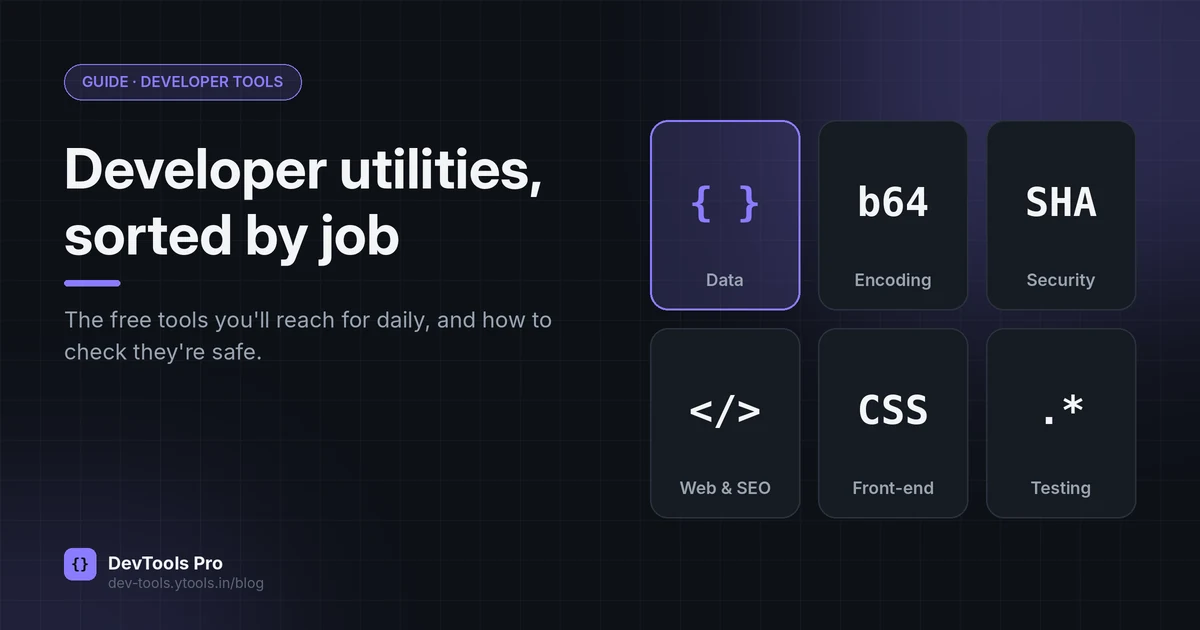
Quick answer: a developer utility is a small, single-purpose tool that transforms or checks one piece of data: format JSON, encode Base64, hash a string, generate an ID, test a regex. Most developers rely on six categories: data formatting, encoding, security helpers, web and SEO files, front-end design helpers, and testing.
In this guide
- What counts as a developer utility
- The six categories
- Browser tool vs CLI vs IDE extension
- Is it safe to paste data into an online tool?
- Decision guide
- Common mistakes
- FAQ
What counts as a developer utility
A utility does one job on one input and gives you the output immediately. That separates it from three things it's often confused with:
| What it is | Example | |
|---|---|---|
| Developer utility | One input → one transformed or checked output | Format a JSON blob, encode a URL |
| IDE or editor | Where you write and manage code | VS Code, JetBrains IDEs |
| Framework or library | Code your application depends on | React, Django |
| Browser DevTools | Built-in tools for inspecting a live page | Chrome's Network panel |
Browser DevTools and online utilities work well together. DevTools shows you the raw response a page received; a utility turns that response into something you can read. We cover that pairing in What are developer tools? Browser DevTools vs online tools.
The six categories of developer utilities
Sorting tools by job, rather than alphabetically, makes it obvious which one to reach for.
1. Data and formatting
The most-used category. APIs return minified JSON; logs contain XML; a teammate pastes SQL on one line. Formatting adds indentation so you can read structure, and validation tells you whether the data is syntactically correct.
- Online JSON formatter for API responses and config files
- CSV to JSON converter when spreadsheet data needs to feed code
- JSON schema validator to check that data has the right shape, not only valid syntax
The difference between formatting, validating and schema checks trips people up; How to format JSON and XML covers it in detail.
2. Encoding and decoding
Encoding converts data into a form that survives a particular channel. It is not encryption: anyone can reverse it.
- Base64 represents binary data with 64 printable characters so it can travel through text-only systems; the scheme is defined in RFC 4648. Try the Base64 encoder and decoder.
- URL encoding escapes characters such as spaces and
&in query strings (URL encoder). - HTML entity encoding turns
<into<so text displays instead of being parsed as markup (HTML encoder).
3. Security helpers
These generate or inspect security-related values. Use them for development and debugging, and be deliberate about what you paste in.
- Hash generator: produce a SHA-256 (or similar) digest to confirm a file or string hasn't changed.
- Password generator: random passwords for test accounts and local services.
- Decode a JWT in the browser: read the header and claims of a JSON Web Token. A JWT's payload is encoded, not encrypted, which is why it can be decoded without a key (RFC 7519).
- UUID generator: unique identifiers for records and test data. Current UUID versions are specified in RFC 9562.
4. Web and SEO files
Small text files with strict syntax, where one wrong line has real consequences.
- robots.txt generator (and the guide How to create a robots.txt file)
- XML sitemap generator
- Meta tag generator
- .htaccess generator for Apache redirects and headers
5. Front-end and design
Helpers that produce CSS or visual assets you'd otherwise hand-tune:
- Colour palette generator
- CSS gradient generator and box shadow generator
- Loading spinner generator (see how to make an accessible CSS spinner)
6. Testing and data generation
- Regex tester: try a pattern against sample strings before it ships
- Random data generator and mock API data generator for fixtures
- Text diff checker to compare two versions of output
How to generate realistic test data explains which values are safe to use in fixtures.
Browser tool vs CLI vs IDE extension
The same job can usually be done three ways. None is always best.
| Browser-based utility | Command-line tool | IDE extension | |
|---|---|---|---|
| Setup | None | Install once | Install per editor |
| Speed for a one-off | Fastest | Fast if you remember the flags | Fast inside the editor |
| Repeatable / scriptable | No | Yes | Partly |
| Works offline | Only if the page processes data client-side and is cached | Yes | Yes |
| Privacy | Depends on the tool; check (see below) | Data stays on your machine | Data stays on your machine, unless the extension calls a service |
| Best for | Quick checks, shared machines, teaching | CI pipelines, bulk files | Daily editing |
A practical rule: use a browser utility for one-off inspection, a CLI tool once you find yourself doing the same job three times, and an editor extension for things you do every hour.
Is it safe to paste data into an online tool?
It depends on whether the tool processes input in your browser or sends it to a server. Many formatters and encoders run entirely in JavaScript on the page; others post your input to a backend. You don't have to take anyone's word for it. You can check in under a minute.
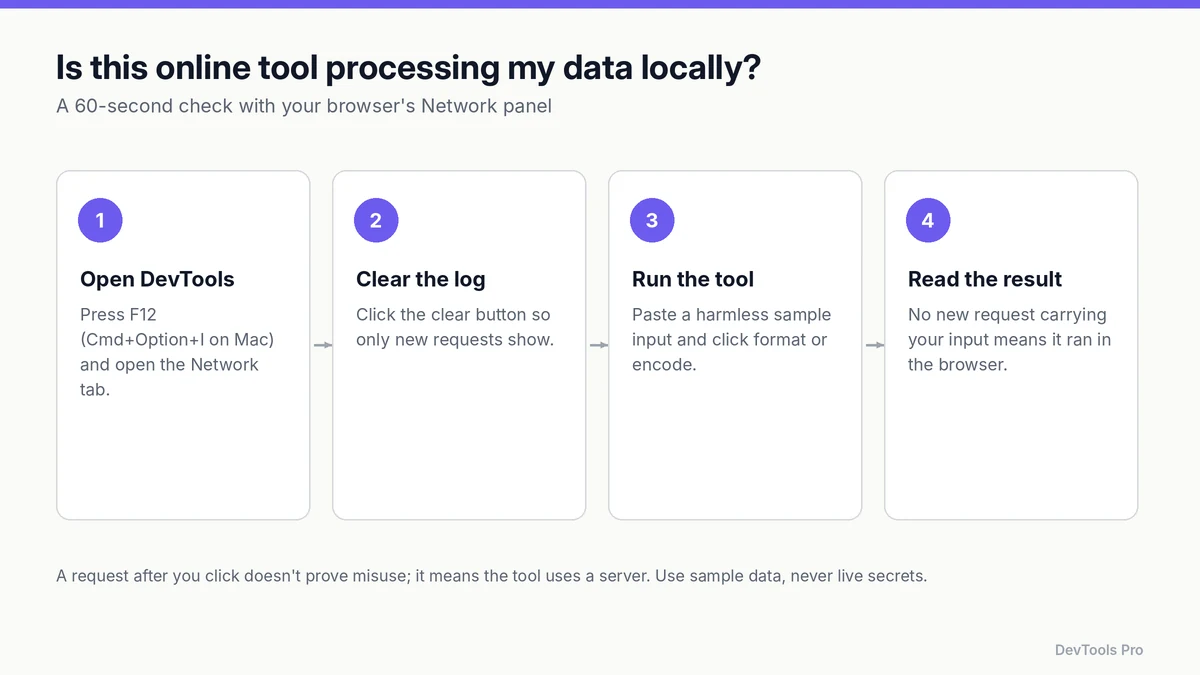
- Open DevTools with F12 (Cmd+Option+I on a Mac) and switch to the Network panel.
- Clear the log so only new requests appear.
- Run the tool with a harmless sample, such as
{"test": true}. - Read the result. If no new request carries your input, the work happened in your browser.
A request after you click doesn't mean a tool misuses data. It means a server is involved, so treat the tool like any other third-party service.
Whatever the answer, never paste live secrets (production API keys, private keys, real customer data or session tokens) into any online tool. Use redacted or sample values instead.
Decision guide: which utility do you need?
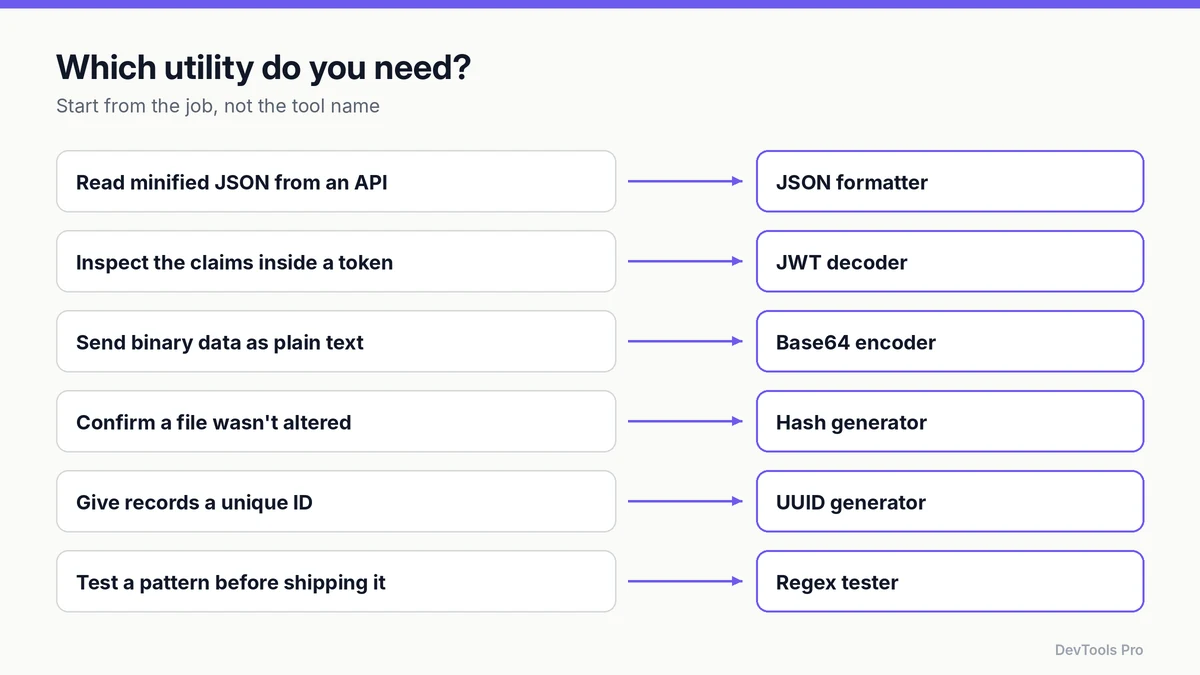
Start from what you're trying to do, not from the tool's name.
| I need to… | Use |
|---|---|
| Read a minified API response | JSON formatter |
| See what's inside an auth token | JWT decoder |
| Put binary data in a text field or URL | Base64 encoder |
| Confirm a download wasn't altered | Hash generator |
| Give database rows unique IDs | UUID generator |
| Test a validation pattern | Regex tester |
Stop crawlers hitting /admin/ | robots.txt generator |
| Fill a staging database | Random or mock data generator |
Common mistakes
Treating decoding as verification. A JWT decoder shows you the claims; it does not prove the token is genuine. Verification requires checking the signature with the right key, which your server-side library should do.
Confusing encoding with encryption. Base64 hides nothing. Anyone can decode it, so don't use it to "protect" a password or key.
Pasting production secrets. Even tools that run locally can be affected by browser extensions. Redact first.
Validating syntax but not structure. Valid JSON can still be the wrong JSON. If an API expects "age": 42 and receives "age": "42", a formatter won't complain. A schema validator will.
Using a utility where automation belongs. If you're formatting the same files every day, add a formatter to your editor or CI pipeline instead.
Frequently asked questions
What are developer utilities?
Small, single-purpose tools that transform or check one piece of data, such as formatting JSON, encoding a URL, hashing a string or generating a UUID. They complement your editor and browser DevTools rather than replacing them.
Are free online developer tools safe to use?
They can be, but safety depends on whether a tool processes your input in the browser or on a server. Use the four-step Network panel check above, and never paste production secrets into any online tool.
Do browser-based developer utilities work offline?
Only if the tool runs entirely in your browser and the page is already loaded or cached. Tools that rely on a server need a connection.
What's the difference between decoding and verifying a JWT?
Decoding reads the token's header and payload, which anyone can do because they're Base64url-encoded. Verifying checks the signature with a secret or public key to confirm the token wasn't forged or modified.
Is there an all-in-one developer tools site?
Yes. Collections such as DevTools Pro's tool index group formatters, encoders, generators and validators by category so you don't need separate bookmarks for each.
What's the difference between developer tools and developer utilities?
People use the terms loosely. "Developer tools" often means the browser's built-in DevTools; "developer utilities" usually means small standalone tools for data jobs. This guide to developer tools explains both.
Conclusion
Pick utilities by the job in front of you, check where your data goes before trusting a tool with anything sensitive, and move repeated jobs into your editor or pipeline. For everything else, a well-organised set of browser tools saves dozens of small detours a week.
Browse all 71 tools by category →
Related tools
JSON formatter · Base64 encoder · JWT decoder · Hash generator · Regex tester
Related articles
- What are developer tools? Browser DevTools vs online tools
- How to format JSON and XML
- How to generate realistic test data
Sources
- RFC 4648 — The Base16, Base32, and Base64 Data Encodings: definition of Base64.
- RFC 7519 — JSON Web Token (JWT): JWT structure and claims.
- RFC 9562 — Universally Unique IDentifiers (UUIDs): current UUID versions.
- MDN — What are browser developer tools?: opening DevTools and the Network panel.
Related Posts
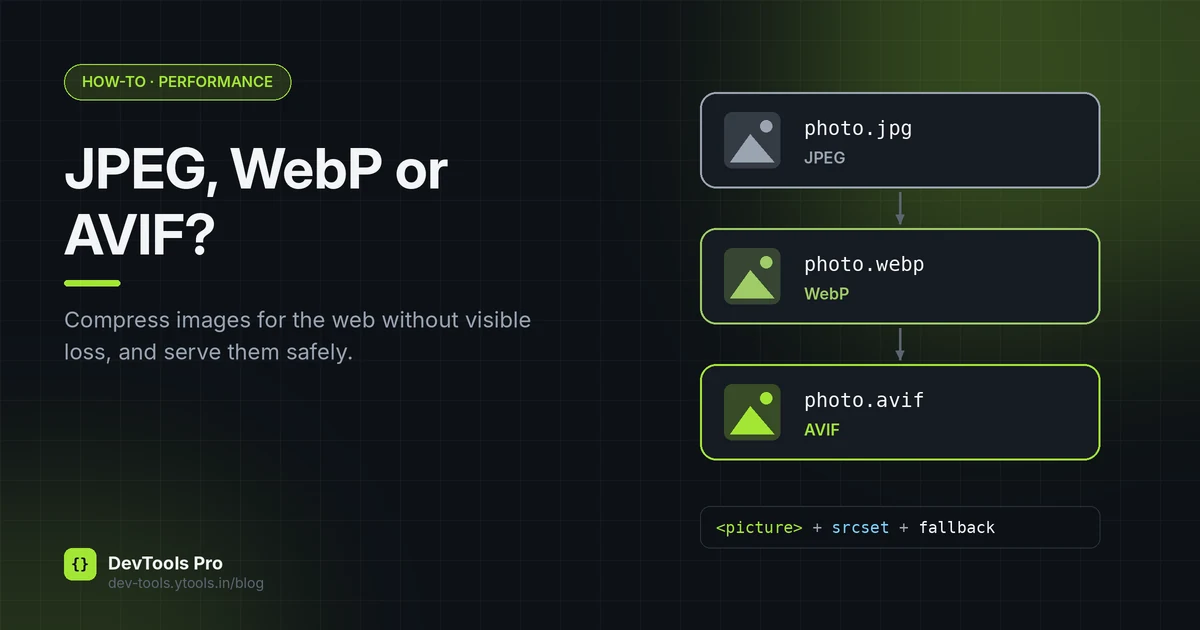
How to Compress Images for the Web: JPEG vs WebP vs AVIF
Choose the right image format, compress without visible quality loss, and serve WebP and AVIF safely with fallbacks. Includes a format decision table.
Read More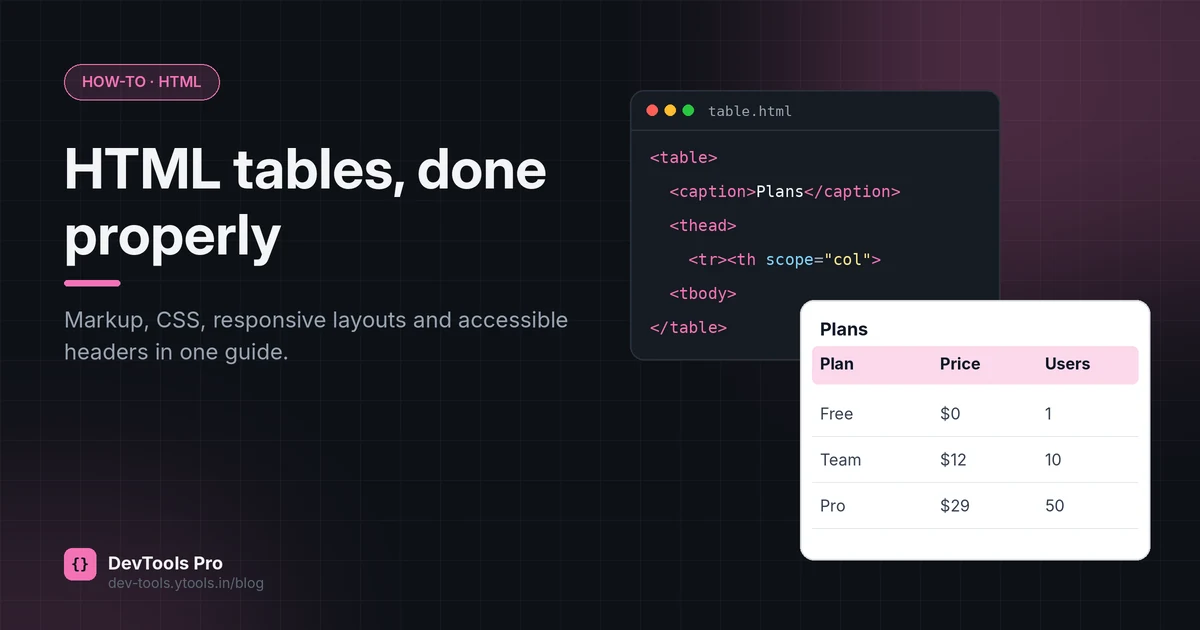
How to Create an HTML Table: Code, CSS and Accessibility
Build an HTML table from scratch: the right tags, merged cells, responsive CSS and accessible headers, plus how to turn spreadsheet data into HTML.
Read More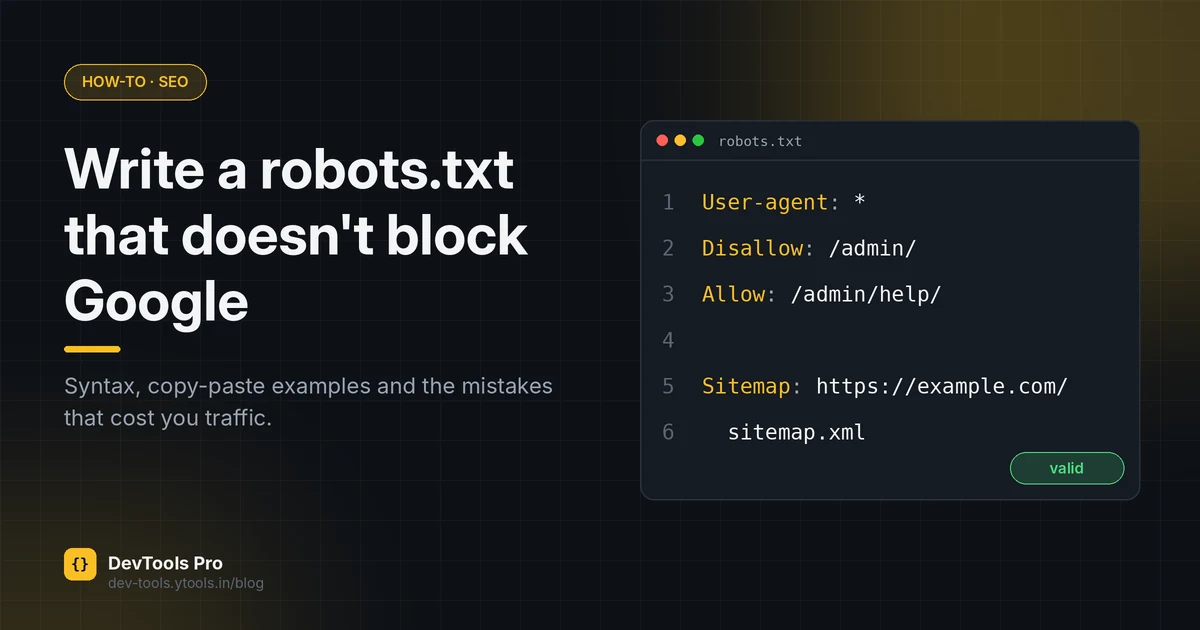
How to Create a robots.txt File: Rules, Examples, Mistakes
Create a correct robots.txt in minutes: syntax, copy-paste examples for common setups, how to test it, and the mistakes that accidentally block Google.
Read More