How to Create an HTML Table: Code, CSS and Accessibility
HTML tables look simple: rows, cells, done. But most tables on the web are missing the two or three elements that make them readable on a phone and understandable to a screen reader, and many still use attributes deprecated years ago.
This guide shows you how to create an HTML table properly: the elements and what each one is for, merged cells, modern CSS styling, two responsive patterns, accessible headers, and how to turn spreadsheet data into table code without retyping it.
Quick answer: wrap the table in
<table>, name it with<caption>, put header cells (<th scope="col">) in a<thead>row, put data rows (<tr>with<td>cells) in<tbody>, and style it with CSS rather than HTML attributes.
html<table>
  <caption>Team plans compared</caption>
  <thead>
    <tr>
      <th scope="col">Plan</th>
      <th scope="col">Seats</th>
      <th scope="col">Price / month</th>
    </tr>
  </thead>
  <tbody>
    <tr><th scope="row">Free</th><td>1</td><td>$0</td></tr>
    <tr><th scope="row">Team</th><td>10</td><td>$12</td></tr>
  </tbody>
</table>
(Prices in examples are illustrative.)
In this guide
- The elements of an HTML table
- Build one step by step
- Merging cells
- Styling with CSS
- Responsive tables
- Accessible tables
- Spreadsheet or CSV to HTML
- FAQ
The elements of an HTML table
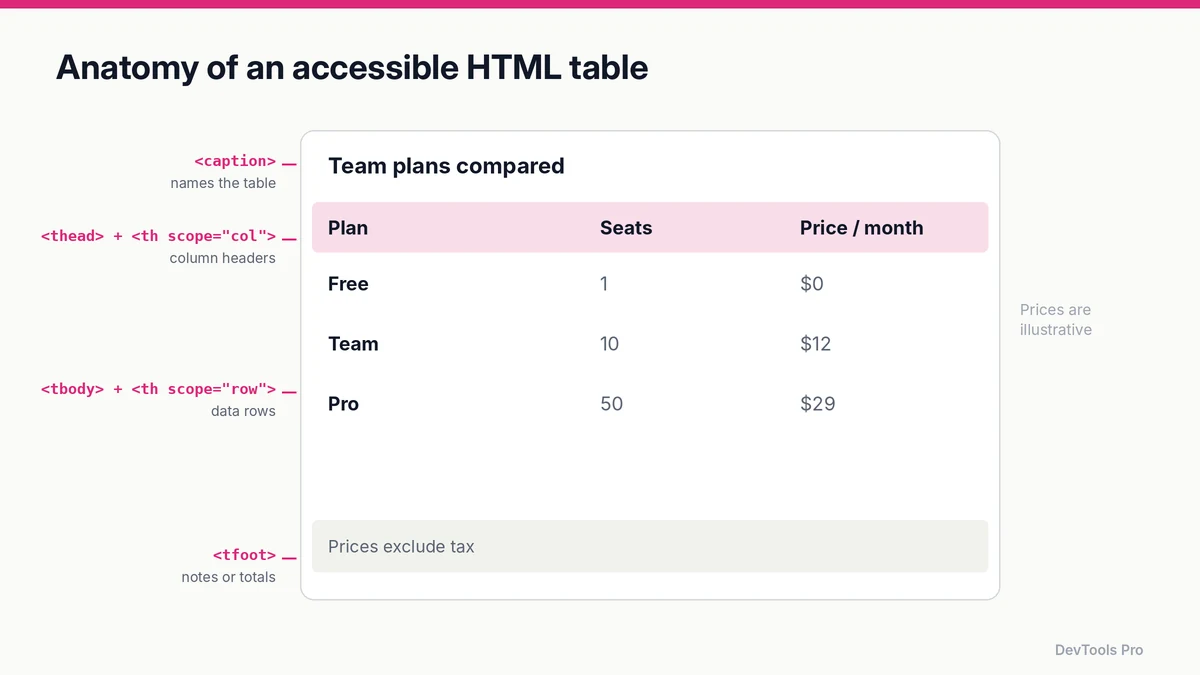
| Element | Purpose |
|---|---|
<table> | Wraps the whole table |
<caption> | A visible title that names the table; read first by screen readers |
<thead> | Groups the header row(s) |
<tbody> | Groups the data rows |
<tfoot> | Groups footer rows such as totals or notes |
<tr> | A row |
<th> | A header cell (for a column or a row) |
<td> | A data cell |
<colgroup> / <col> | Lets you style whole columns, e.g. a width or background |
MDN's <table> reference lists the full set, and the normative rules are in the WHATWG HTML standard.
How to create an HTML table step by step
textInput (your data)        →   Markup                       →   Output
Plan, Seats, Price           <table> + <caption>              A titled table
Free, 1, $0                  <thead> with <th scope="col">    with headers
Team, 10, $12                <tbody> rows with <th>/<td>      and data rows
- Start with the container and caption. The caption says what the table is about. If you don't want it visible, you can hide it visually with CSS, but keep it in the markup.
- Add the header row inside
<thead>, one<th scope="col">per column. - Add data rows inside
<tbody>. If the first cell of each row identifies the row (a name, a plan, a date), make it<th scope="row">instead of<td>. - Add a footer in
<tfoot>if you have totals or notes. - Style with CSS (next sections), never with
border,cellpaddingorbgcolorattributes.
Prefer to build it visually? The HTML table generator lets you type into a grid and copy clean markup. For README files and docs, the Markdown table generator does the same in Markdown.
Merging cells with colspan and rowspan
colspan stretches a cell across columns; rowspan stretches it down rows.
html<table>
  <caption>Quarterly sign-ups</caption>
  <thead>
    <tr>
      <th scope="col" rowspan="2">Region</th>
      <th scope="colgroup" colspan="2">2026</th>
    </tr>
    <tr>
      <th scope="col">Q1</th>
      <th scope="col">Q2</th>
    </tr>
  </thead>
  <tbody>
    <tr><th scope="row">North</th><td>120</td><td>140</td></tr>
    <tr><th scope="row">South</th><td>95</td><td>110</td></tr>
  </tbody>
</table>
Use merged cells sparingly. Every merge makes the table harder for assistive technology to describe; if a table needs several levels of merged headers, consider splitting it into two simpler tables.
Styling an HTML table with CSS
Attributes like border, cellpadding, cellspacing, bgcolor and width on tables are deprecated; MDN recommends CSS instead (MDN). A clean starting point:
csstable {
  border-collapse: collapse;   /* single borders between cells */
  width: 100%;
  font-variant-numeric: tabular-nums; /* numbers line up */
}
caption {
  text-align: left;
  font-weight: 600;
  padding-bottom: 0.5rem;
}
th, td {
  padding: 0.6rem 0.8rem;
  border-bottom: 1px solid #e5e7eb;
  text-align: left;
}
thead th {
  background: #f9fafb;
  position: sticky;            /* header stays visible while scrolling */
  top: 0;
}
tbody tr:nth-child(even) {
  background: #fafafa;         /* zebra rows */
}
td.num, th.num {
  text-align: right;           /* right-align numbers */
}
Tidy long stylesheets with the CSS formatter.
Responsive HTML tables
Wide tables are the most common mobile layout bug. There are two reliable fixes.
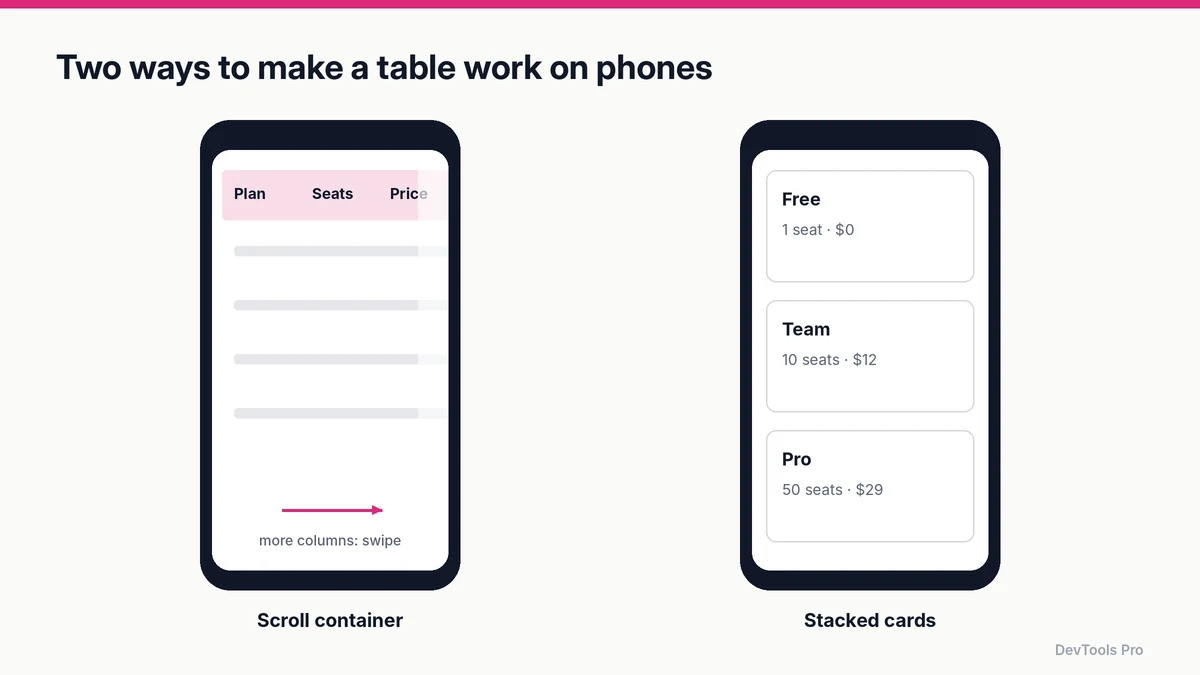
Option 1: a scroll container (keeps the table a table)
html<div class="table-scroll" role="region" aria-labelledby="plans-caption" tabindex="0">
  <table>
    <caption id="plans-caption">Team plans compared</caption>
    …
  </table>
</div>
css.table-scroll { overflow-x: auto; }
tabindex="0" lets keyboard users focus the region and scroll it with arrow keys; the role and label tell screen-reader users what the scrollable area contains. This is the safest default for data people compare across columns.
Option 2: stacked cards (for few columns, many rows)
On narrow screens, each row becomes a card and each cell shows its column name:
html<td data-label="Seats">10</td>
css@media (max-width: 600px) {
  thead { position: absolute; left: -9999px; }   /* hide visually, keep for AT */
  tr { display: block; margin-bottom: 1rem; border: 1px solid #e5e7eb; }
  td, th { display: block; }
  td::before { content: attr(data-label) ": "; font-weight: 600; }
}
Changing the display of table elements can cause some browser and screen reader combinations to stop treating the content as a table. Test with a screen reader, or use Option 1 if the data is meant to be compared.
Making tables accessible
Screen-reader users navigate tables cell by cell and hear the matching row and column headers as they go, as long as the markup provides them. The W3C's tables tutorial sets out the essentials:
- Mark headers with
<th>, data with<td>. Bold text in a<td>is not a header. - Add
scope.scope="col"for column headers,scope="row"for row headers. - Use
<caption>to name the table. - For complex tables with multi-level headers, give header cells
ids and reference them from data cells withheaders="…", or split the table. - Don't use tables for page layout. Use CSS grid or flexbox; tables are for tabular data.
Converting Excel, Google Sheets or CSV to an HTML table
You rarely need to type table data by hand.
- From Excel or Google Sheets: select the cells, copy, and paste into the HTML table generator. Most grid editors accept tab-separated paste, which is what spreadsheets put on the clipboard.
- From a CSV file: paste the CSV into the generator, or convert CSV to JSON first if you're rendering the table from JavaScript.
- From code: loop over an array of objects and output
<tr>elements, keeping the header row andscopeattributes in your template.
After conversion, add the caption and scope attributes if the tool didn't, and run the output through a code beautifier before committing it.
Common mistakes
- Missing
<th>elements, so screen readers can't announce headers. - Using deprecated attributes (
border="1",cellpadding) instead of CSS. - Fixed pixel widths that force horizontal page scroll on phones.
- Tables for layout, which confuses assistive technology and breaks responsive design.
- Over-merged headers, which make tables hard to follow for everyone.
- Centred numbers. Right-align numeric columns so digits line up.
Frequently asked questions
How do I make a table in HTML?
Use <table>, add a <caption>, then a header row of <th scope="col"> cells inside <thead>, then data rows of <td> cells inside <tbody>. Style it with CSS.
How do I convert an Excel table to HTML?
Copy the cells from Excel and paste them into an HTML table generator, which turns the tab-separated clipboard data into markup. Then add a caption and header scopes.
How do I merge cells in an HTML table?
Use colspan="n" on a cell to span n columns and rowspan="n" to span n rows.
How do I make an HTML table responsive?
Wrap it in a container with overflow-x: auto so it scrolls sideways on small screens, or restyle rows as stacked cards with CSS for tables with few columns.
Should I use tables for page layout?
No. Tables are for tabular data. Use CSS grid or flexbox for layout.
How do I add borders to an HTML table?
Use CSS: border-collapse: collapse; on the table and a border or border-bottom on th and td. The border HTML attribute is deprecated.
Conclusion
A good HTML table has a caption, real header cells with scope, data grouped in <thead> and <tbody>, CSS for every visual choice, and a plan for small screens. Get those right and the same markup works for sighted users, screen-reader users and search engines.
Build your table visually with the HTML table generator, then copy the code →
Related tools
HTML table generator · Markdown table generator · CSV to JSON converter · CSS formatter
Related articles
Sources
- MDN —
<table>: The Table element: elements, accessibility notes and deprecated attributes. - W3C WAI — Tables Tutorial: header markup,
scope, captions and complex tables. - WHATWG — HTML Standard: Tabular data: normative definition.
Related Posts

How to Compress Images for the Web: JPEG vs WebP vs AVIF
Choose the right image format, compress without visible quality loss, and serve WebP and AVIF safely with fallbacks. Includes a format decision table.
Read More
How to Create a robots.txt File: Rules, Examples, Mistakes
Create a correct robots.txt in minutes: syntax, copy-paste examples for common setups, how to test it, and the mistakes that accidentally block Google.
Read More
How to Make a CSS-Only Loading Spinner (Accessible Code)
Build a CSS-only loading spinner with @keyframes, make it accessible with ARIA and reduced-motion support, and learn when a skeleton screen is better.
Read More