How to Save ChatGPT Conversations With Formatting Intact
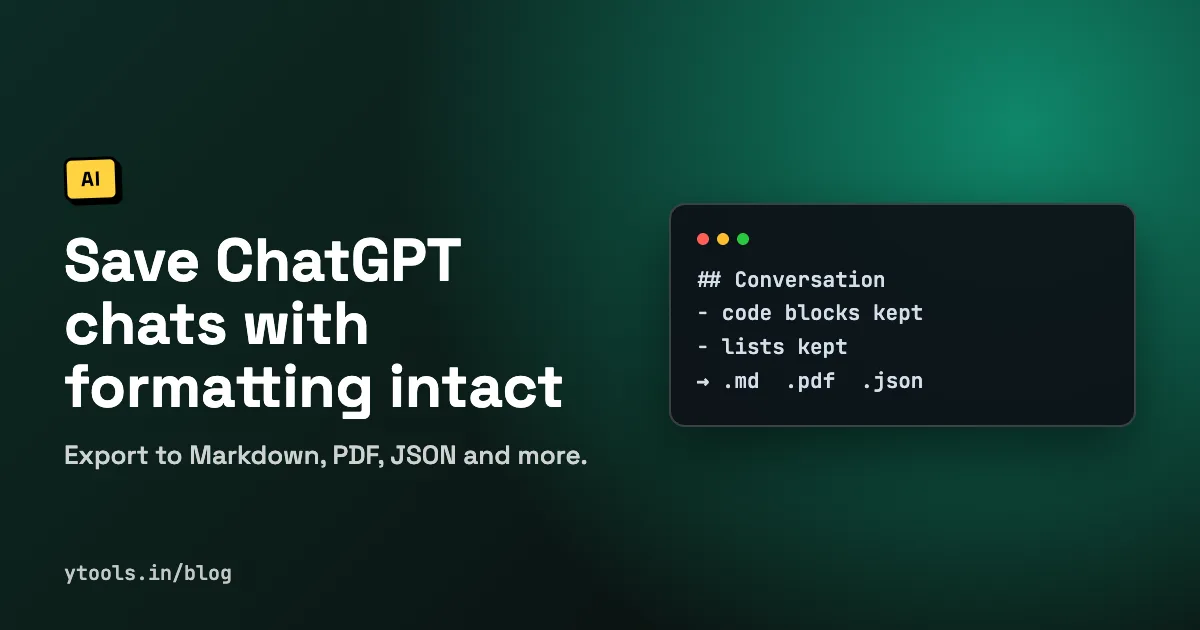
You get a great answer from ChatGPT: a working script, a clear explanation, a prompt that finally produced what you wanted. A week later you can't find it, or you copy it out and the code indentation and bullet points fall apart.
This guide covers the ways to save ChatGPT conversations, when ChatGPT's own options are enough, and how to export individual answers to Markdown, PDF or JSON with the formatting kept, using the free Save GPT Chrome extension.
Quick answer: to save a ChatGPT conversation with formatting intact, install Save GPT from the Chrome Web Store, save the responses you want with one click, then export them as Markdown, PDF, JSON, CSV or plain text. Code blocks, lists and tables are kept as they appear in the chat.
Why copy and paste isn't enough
Selecting text in the chat window and pasting it elsewhere works for a sentence or two. For anything longer, it tends to break:
- Code blocks lose their fences and language labels, and indentation can shift.
- Nested lists flatten into plain lines.
- Tables turn into tab-separated text, or one long line.
- Context disappears: you keep the answer but lose the prompt that produced it.
Built-in ChatGPT options vs an extension
ChatGPT has its own ways to keep conversations. Your chat history stays in the sidebar, you can create a share link for a conversation, and the settings include a data export that sends you an archive of your account history. Menus change over time, so check OpenAI's help centre for the current steps.
Those options are fine for some jobs. They're less suited to building a reusable library of specific answers.
| Need | ChatGPT built-in options | Save GPT extension |
|---|---|---|
| Keep a full chat to come back to | Sidebar history | Save the responses you care about |
| Back up everything at once | Account data export | Export saved snippets or whole histories |
| Save one answer, not the whole chat | Copy and paste | One-click save of that response |
| Get Markdown with code blocks intact | Not the main purpose | Core feature |
| Search and tag saved answers | Search your chat history | Full-text search and tags |
| Save from Claude, Gemini or Perplexity too | No | Yes |
A fair summary: use the built-in options for whole-account backups and quick sharing. Use an extension when you want specific answers saved, formatted and organised.
What Save GPT does
Save GPT is a Chrome extension and web app for capturing, organising and exporting AI responses. These are the features listed on savegpts.com and its store listing:
- One-click saving of AI responses.
- Formatting preserved: Markdown structure, code blocks, syntax highlighting, bullet points and tables, as they appear in the response.
- Several AI platforms: ChatGPT, Claude, Google Gemini, Perplexity and Poe, plus text selection on any other website.
- Export formats: PDF, Markdown (.md), JSON, CSV and plain text, for single snippets or entire conversation histories.
- Organisation: full-text search and tagging.
- Sync: optional encrypted cloud sync across devices.
On price, the homepage calls Save GPT "100% Free", and the store listing notes that it offers in-app purchases. Check the pricing page for the current plans before you rely on any limit.
How to save and export a ChatGPT chat, step by step
- Install the extension. Open the Save GPT Chrome Web Store page and click Add to Chrome. It runs in Chrome and other Chromium-based browsers.
- Pin it to your toolbar. Click the puzzle-piece icon in Chrome and pin Save GPT so it's one click away.
- Open ChatGPT and go to the conversation you want to keep.
- Save the response. Use Save GPT's save control on the answer you want. Save the prompt as well if you'll need to repeat the result.
- Tag it straight away. Add one or two tags while you still remember why it mattered (see the tips below).
- Export. Choose a single snippet or a whole history and pick a format: Markdown, PDF, JSON, CSV or plain text.
- Check the output. Open the file and confirm that code blocks, lists and tables came through the way you expect before you delete anything from ChatGPT.
Which export format to choose
Pick the format based on where the chat goes next.
| Format | Best for | Keeps structure? | Watch out for |
|---|---|---|---|
| Markdown (.md) | Notes apps such as Obsidian or Notion, READMEs, docs, Git repositories | Yes: headings, lists, tables, fenced code | Rendering depends on the app you open it in |
| Sharing with non-technical people, printing, fixed records | Visually, yes | Hard to edit or copy code back out cleanly | |
| JSON | Developers processing chats with scripts, importing into other tools | As data fields | Not pleasant to read raw; format it first |
| CSV | Spreadsheets, listing many saved snippets in rows | Flattened | Code and long text don't suit cells |
| Plain text | Quick pastes, tools that don't support Markdown | No | Loses code fences and tables |
If you're unsure, export Markdown. It's readable as-is, keeps code blocks, and converts easily to other formats later.
If you export JSON, run it through a formatter before reading it. Our guide on how to format and validate JSON and XML explains how to make it readable and spot broken files.
How to organise saved chats
A pile of 300 untitled exports is barely better than nothing. A few habits keep a saved-chat library useful:
- Save the answer, not the whole thread. Most long chats have one or two responses worth keeping. Saving only those keeps search results clean.
- Tag by project, then by type. For example
project-websitepluscode,promptorexplanation. Two tags per snippet is usually enough. - Keep the prompt with the answer. A good prompt is often more reusable than the output.
- Name exported files consistently. Something like
2026-10-02-regex-email-validation.mdsorts by date and is searchable by topic. - Store Markdown exports in one folder that your notes app or editor indexes, so they show up in normal search.
- Review monthly. Delete answers that turned out wrong or outdated. AI responses age, especially about libraries and APIs.
If you collect a lot of developer snippets, our overview of developer utilities covers the small tools that help you clean up and check them.
Privacy: where your saved chats live
Chats often contain work code, client details or personal notes, so it matters where they end up. According to Save GPT's site, it uses a local-first model: snippets are stored in your browser, with optional encrypted cloud sync.
The Chrome Web Store listing adds that the extension handles authentication information and website content, and that the developer states data is not sold to third parties or used for purposes unrelated to the extension's core function. Read the privacy policy for the full terms, and avoid saving secrets such as API keys or passwords in any snippet tool.
FAQ
How do I save a ChatGPT conversation as Markdown? Install Save GPT, save the responses you want, then export them as Markdown (.md). Code blocks, lists and tables are kept in Markdown syntax.
Can I export a ChatGPT chat to PDF? Yes. Save GPT exports to PDF as well as Markdown, JSON, CSV and plain text. PDF is good for sharing and records, and Markdown is better if you'll edit the content.
Does Save GPT keep code formatting? Yes. The product site says it preserves code blocks, syntax highlighting, bullet points and tables as they appear in the AI response.
Does it work with Claude and Gemini as well as ChatGPT? Yes. Save GPT supports ChatGPT, Claude, Google Gemini, Perplexity and Poe, and can capture selected text on other websites.
Is Save GPT free? The homepage describes it as free, and the Chrome Web Store listing mentions in-app purchases. Check the official pricing page for current details.
Do I still need ChatGPT's own data export? It's still useful as a full backup of your account. Save GPT is for saving specific answers with their formatting and keeping them organised and searchable.
Conclusion
Saving ChatGPT conversations properly comes down to three choices: save the answers worth keeping rather than everything, export to a format that matches where they're going (Markdown in most cases), and tag them so you can find them again. ChatGPT's built-in options handle backups and sharing. Save GPT handles formatted, organised, multi-assistant snippets. You can also find it on the Save GPT tool page.
Start saving your best AI answers with Save GPT →
Related Posts
How to Analyze Bank Statement Spending Safely
Learn to read bank and UPI statements, categorize transactions, and analyze your spending, while keeping OTPs, PINs and account details private.
Read More
How to Analyze Your Spending Habits: Find Your Patterns
Learn how to analyze your spending habits by looking at frequency, timing and triggers. Includes a worked ₹ example and a simple habit-review method.
Read More
Budget vs Actual Spending: How to Analyze the Gap
Compare your budget with actual spending, calculate variance in ₹ and %, and decide what to change. Includes a worked example with every formula shown.
Read More