Flutter Snippets for VS Code: Prefixes, Setup and Tips
Most Flutter code starts the same way: a widget class, a build method, a ListView.builder, a SizedBox for spacing. Typing that boilerplate by hand dozens of times a day is slow and easy to get slightly wrong.
This guide shows how the free Flutter Snippets extension for VS Code turns short prefixes into that code, which prefixes are worth learning first, and how to fit snippets into your daily workflow.
Quick answer: install Flutter Snippets by Om Chauhan from the VS Code Marketplace, open a
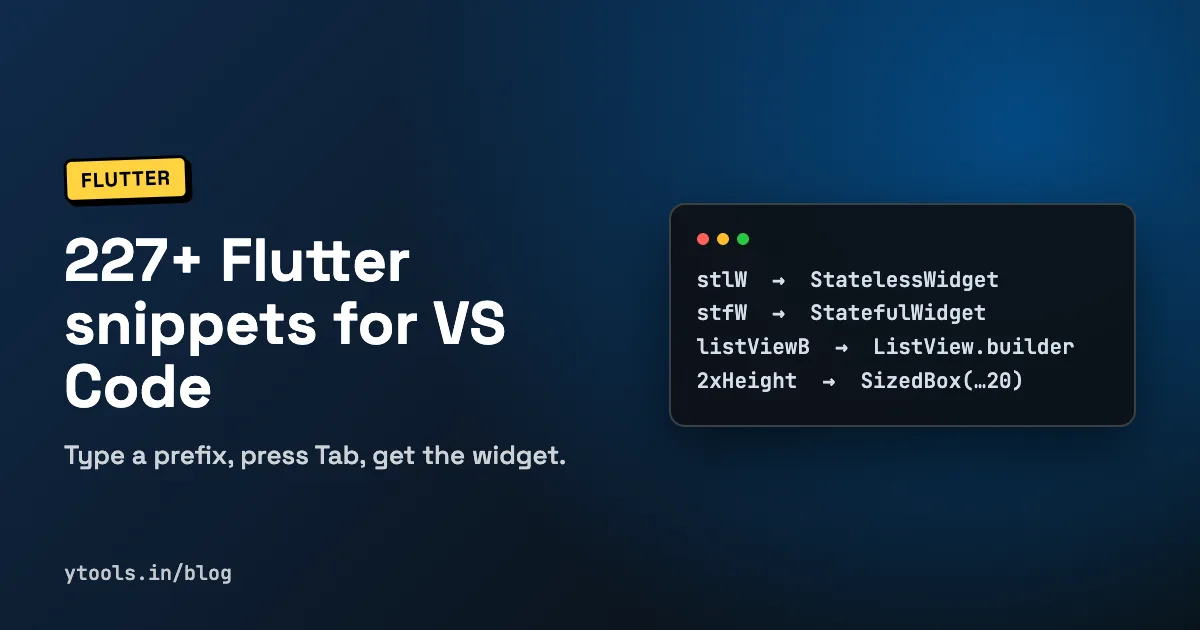
.dartfile, type a prefix such asstlW(stateless widget) orstfW(stateful widget) and press Tab. The extension ships 227+ snippets in 12 categories, covering core widgets, builders, spacing, forms, navigation, networking, state management, animations, Dart language features and testing.
What a VS Code snippet actually does
A snippet is a template with a short trigger word, called a prefix. When you type the prefix, it appears in VS Code's IntelliSense suggestions. Pick it (or press Tab) and the prefix is replaced with the full template.
Good snippets also contain placeholders: spots the cursor jumps to so you can type a class name or value once. Press Tab to move to the next placeholder. VS Code's own documentation on snippets in Visual Studio Code explains the format if you want to write your own.
Snippets don't replace understanding Flutter. They remove the typing, so your attention stays on layout and logic.
How to install Flutter Snippets in VS Code
- Open VS Code and go to Extensions (
Ctrl+Shift+X, orCmd+Shift+Xon macOS). - Search for "Flutter Snippets" and pick the one published by Om Chauhan.
- Click Install, then restart VS Code.
- Open any
.dartfile in your project. - Type a prefix, for example
stlW, and press Tab.
There's no configuration step. You can also install it straight from the Flutter Snippets Marketplace page. It's free, MIT licensed, and works on Windows, macOS and Linux.
If you're setting up Flutter in VS Code for the first time, follow the official Flutter VS Code setup guide first so the Dart and Flutter tooling is in place.
The prefixes to learn first
You don't need to memorise 227 prefixes. These cover most day-to-day work.
| Prefix | What it generates |
|---|---|
importM / importC | Material or Cupertino package import |
stlW | Stateless widget class |
stfW | Stateful widget with its State class |
buildM | build method override |
initS | initState override with super.initState() |
dis | dispose override with super.dispose() |
listViewB | ListView.builder |
ListViewS | ListView.separated |
gridViewB / gridViewC / gridViewE | GridView builder, count and extent |
futureB / streamB | FutureBuilder and StreamBuilder |
layoutB / oriB | LayoutBuilder and OrientationBuilder |
singleChildSV / customSV | SingleChildScrollView and CustomScrollView |
alertDialog | Alert dialog method |
debugP | Debug print |
resClass | Responsive class code |
Prefixes use camelCase, so listViewB is "listView Builder" and stfW is "stateful Widget". Once you see the pattern, guessing a prefix is usually faster than looking it up.
Stateless and stateful widget snippets
The stateless widget snippet is the one you'll use most. Typing stlW and pressing Tab produces:
dartclass MyCard extends StatelessWidget {
  const MyCard({Key? key}) : super(key: key);
  @override
  Widget build(BuildContext context) {
    return Container();
  }
}
The class name is a placeholder, so you type MyCard once and it fills in everywhere.
stfW does the same for a stateful widget and creates both classes:
dartclass Counter extends StatefulWidget {
  Counter({Key? key}) : super(key: key);

  @override
  _CounterState createState() => _CounterState();
}

class _CounterState extends State<Counter> {
  @override
  Widget build(BuildContext context) {
    return Container(
    );
  }
}
Two tips. First, the snippets use the {Key? key}) : super(key: key) constructor style. Recent Dart versions let you write ({super.key}) instead, and the linter may suggest it, so accept the quick fix if your project prefers it. Second, add initS and dis inside the State class when you need setup or cleanup, for example for controllers. The Flutter docs on stateful and stateless widgets explain when each is the right choice.
Builder and list snippets
Lists and grids are where snippets save the most typing. listViewB expands to:
dartListView.builder(
  itemCount: 5,
  shrinkWrap: true,
  physics: ScrollPhysics(),
  itemBuilder: (BuildContext context, int index) {
    return Container();
  },
)
itemCount is a placeholder, so you can replace 5 with items.length straight away. Note that shrinkWrap: true is set on the scrollable snippets. That's handy when a list sits inside another scroll view, but for a long list that fills the screen you can remove it, since shrink-wrapping makes Flutter lay out every item.
For async data, futureB and streamB scaffold FutureBuilder and StreamBuilder. There are also futureBLV (FutureBuilder with a ListView) and futureBLVModel (the same with a model), which suit the common "fetch a list, then show it" screen.
Spacing snippets: consistent gaps without thinking
Spacing is small but constant. The extension includes two sets of SizedBox snippets for height and width.
Step spacing, in 10 logical pixel steps from 10 to 200:
dart// 2xHeight
const SizedBox(height: 20.0)

// 5xWidth
const SizedBox(width: 50.0)
1xHeight to 20xHeight and 1xWidth to 20xWidth follow the same rule: the number times 10.
Named spacing, for a simple design scale:
| Prefix | Output |
|---|---|
smallHeight / smallWidth | 8.0 |
mediumHeight / mediumWidth | 16.0 |
largeHeight / largeWidth | 24.0 |
largerHeight / largerWidth | 32.0 |
largestHeight / largestWidth | 40.0 |
Pick one set per project and stick to it. Using the named scale everywhere gives you consistent spacing without a separate constants file.
Forms, navigation, state and testing snippets
Beyond the basics, the remaining categories cover most of a typical app:
- Forms and validation:
textFormField,formWidget,dropdownFormField,datePickerField, plus validators such asemailValidator,passwordValidatorandphoneValidator. - Navigation:
navPush,navPushNamed,navPop,materialPageRoute,bottomNavBar,drawerWidget, and go_router helpers likegoRouterSetupandgoRouterPush. - Networking:
httpGet,httpPost,dioGet,dioConfig,apiService,jsonModelandrepository. - State management: Provider (
changeNotiPro,consumerProBuild,multiProMaApp), BLoC (blocBloc,blocBuilder,cubit), Riverpod (riverpodProvider,riverpodConsumerWidget), GetX (getxController,getxObx) and built-ins likevalueNotifierandinheritedWidget. - Animations:
animationController,tweenAnimation,fadeTransition,animatedSwitcher,heroWidgetand more. - Dart language:
dartClass,dartMixin,dartExtension,sealedClass,patternMatching,tryCatch. - Testing:
unitTest,widgetTest,mockClass,blocTest,goldenTest,integrationTest.
For example, emailValidator generates a ready-to-use function:
dartString? validateEmail(String? value) {
  if (value == null || value.isEmpty) {
    return 'Email is required';
  }
  final emailRegex = RegExp(r'^[\w-\.]+@([\w-]+\.)+[\w-]{2,4}$');
  if (!emailRegex.hasMatch(value)) {
    return 'Please enter a valid email';
  }
  return null;
}
Both messages are placeholders, so you can localise them as you go. The full prefix list is on the Flutter Snippets tool page and the Marketplace listing.
When you're building API code with jsonModel or apiService, it helps to inspect the real response first. Our guide on how to format and validate JSON covers that, and generating realistic test data pairs well with the testing snippets.
Getting the most out of snippets
- Trigger suggestions manually. If the list doesn't appear, press
Ctrl+Space. - Learn five, then add more. Start with
stlW,stfW,initS,listViewBand one spacing set. Add a category when you start using it. - Read what you insert. A snippet is a starting point. Rename, delete
shrinkWrapwhere it doesn't fit, and follow your team's lint rules. - Combine with Flutter's own tooling. The Dart extension's "Wrap with widget" quick fixes and snippets solve different problems, so use both.
Snippets are one of many small tools that remove friction from development. For more, see our overview of everyday developer utilities and what developer tools are.
FAQ
Is Flutter Snippets free? Yes. It's free on the VS Code Marketplace and released under the MIT licence.
What is the snippet for a stateless widget in Flutter?
With Flutter Snippets, type stlW in a .dart file and press Tab. It creates a StatelessWidget class with a constructor and a build method, with the class name as a placeholder.
Why don't the snippets appear when I type?
Make sure the file is saved with a .dart extension and that you restarted VS Code after installing. If suggestions still don't show, press Ctrl+Space to open IntelliSense manually.
Does it support BLoC, Riverpod and GetX? Yes. Alongside Provider, it includes snippets for BLoC events, states, blocs and cubits, Riverpod providers and consumers, and GetX controllers and Obx.
Can I change a snippet's output? You can edit the inserted code freely, and VS Code lets you define your own user snippets with any prefix if you want a different default.
Conclusion
Flutter Snippets turns the boilerplate you write every day into short prefixes: stlW and stfW for widgets, listViewB for lists, 2xHeight for spacing, and ready-made code for forms, navigation, networking, state management and tests. Install it, learn five prefixes this week, and add more as your app grows. For the visual side of Flutter UI, our Flutter gradient guide covers linear, radial and sweep gradients, and the Omi Theme guide pairs well with Dart highlighting in VS Code.