Flutter Gradient Guide: Linear, Radial and Sweep Code
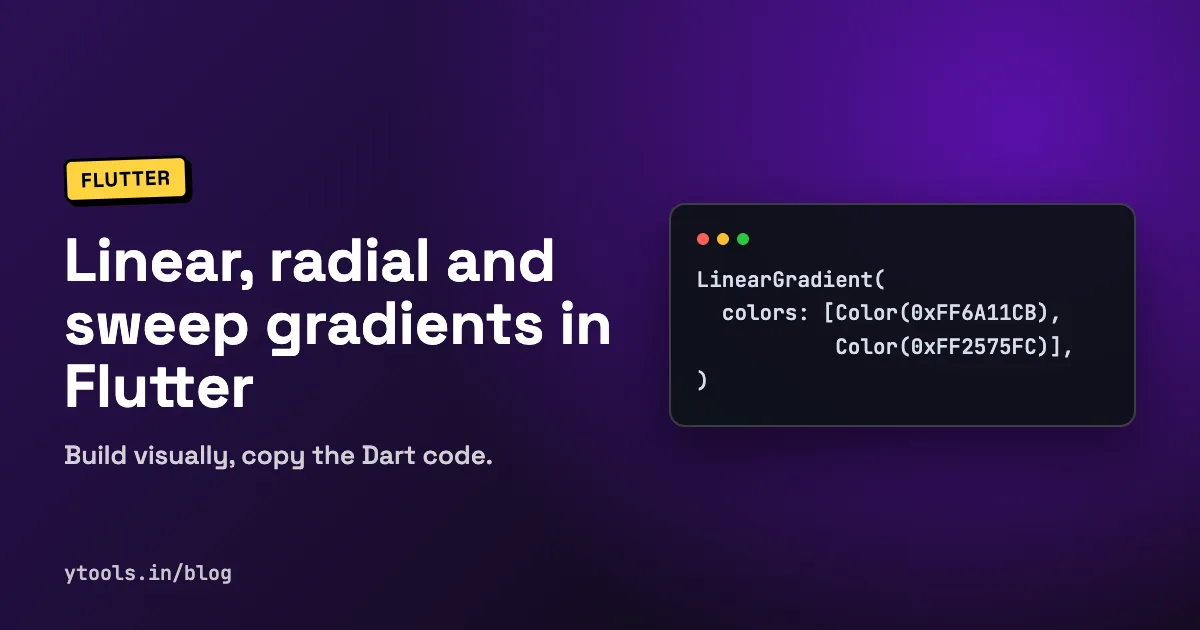
Gradients give a Flutter UI depth, but writing them by hand often means guessing hex codes, alignments and stop values, then hot reloading until it looks right. Once you know how the three gradient classes work, and have a way to preview them, that loop gets much shorter.
This guide covers LinearGradient, RadialGradient and SweepGradient with code that compiles, explains stops and tileMode, and shows how to design a gradient visually and export the Dart code.
Quick answer: in Flutter, pass a gradient to the
gradientproperty of aBoxDecoration, then set that decoration on aContainerorDecoratedBox. UseLinearGradientfor a straight blend betweenbeginandend,RadialGradientfor circles growing out from acenter, andSweepGradientfor a blend that rotates around a center point. Each one takes acolorslist and an optionalstopslist.
How gradients work in Flutter
Gradient is an abstract class in Flutter's painting library. It has three concrete subclasses: LinearGradient, RadialGradient and SweepGradient (Flutter API docs). A gradient is not a widget. It's a description of colors that a decoration or painter turns into a shader.
The most common place to use one is BoxDecoration:
dartimport 'package:flutter/material.dart';

class GradientBox extends StatelessWidget {
  const GradientBox({super.key});

  @override
  Widget build(BuildContext context) {
    return Container(
      height: 200,
      decoration: BoxDecoration(
        borderRadius: BorderRadius.circular(16),
        gradient: const LinearGradient(
          begin: Alignment.topLeft,
          end: Alignment.bottomRight,
          colors: [Color(0xFF6A11CB), Color(0xFF2575FC)],
        ),
      ),
    );
  }
}
Every gradient shares a few properties:
colors: the list of colors, at least two.stops: optional positions from0.0to1.0, one per color. If you leave it out, Flutter spaces the colors evenly.tileMode: what happens outside the gradient's area.transform: an optionalGradientTransform, such asGradientRotation.
LinearGradient: straight-line blends
A LinearGradient blends colors along a line from begin to end. Both are Alignment values, where Alignment(-1, -1) is the top-left corner and Alignment(1, 1) is the bottom-right. The defaults are Alignment.centerLeft to Alignment.centerRight, a left-to-right blend.
dartconst sunset = LinearGradient(
  begin: Alignment.topCenter,
  end: Alignment.bottomCenter,
  colors: [Color(0xFFF44336), Color(0xFFFFC107)],
  stops: [0.2, 0.9],
);
Here the first 20% of the box is solid red, the blend happens between 20% and 90%, and the last 10% is solid amber.
Setting an angle
Flutter has no angle parameter on LinearGradient. To rotate it, either pick different begin and end alignments or add a GradientRotation transform, which takes radians:
dartimport 'dart:math' as math;
import 'package:flutter/material.dart';

final rotated = LinearGradient(
  colors: const [Color(0xFF0575E6), Color(0xFF00F260)],
  transform: GradientRotation(math.pi / 4), // 45 degrees
);
RadialGradient: circles from a center
A RadialGradient draws concentric circles out from center (default Alignment.center). The radius is a fraction of the shortest side of the box, so 0.5 (the default) reaches the edge of a square.
dartconst spotlight = RadialGradient(
  center: Alignment(-0.3, -0.4),
  radius: 0.8,
  colors: [Color(0xFF4CC9F0), Color(0xFF3A0CA3)],
  focal: Alignment(-0.4, -0.5),
  focalRadius: 0.1,
);
focal and focalRadius move the point where the gradient starts away from the center. That's a cheap way to fake a light source on a sphere or a glowing button.
SweepGradient: rotating around a point
A SweepGradient blends colors around a center, like the hand of a clock. startAngle defaults to 0.0 and endAngle to math.pi * 2, a full circle, both in radians.
dartimport 'dart:math' as math;
import 'package:flutter/material.dart';

const ring = SweepGradient(
  center: Alignment.center,
  startAngle: 0.0,
  endAngle: math.pi * 2,
  colors: [
    Color(0xFFF72585),
    Color(0xFF4361EE),
    Color(0xFF4CC9F0),
    Color(0xFFF72585), // repeat the first color to hide the seam
  ],
);
If the last color differs from the first, you get a hard line where the circle closes. Repeating the first color at the end removes it. Sweep gradients suit progress rings, color wheels and circular avatars.
Linear vs radial vs sweep: which to use
| LinearGradient | RadialGradient | SweepGradient | |
|---|---|---|---|
| Shape | Straight bands | Concentric circles | Rotation around a point |
| Key parameters | begin, end | center, radius, focal, focalRadius | center, startAngle, endAngle |
| Defaults | centerLeft to centerRight | center, radius 0.5 | center, 0.0 to 2π |
| Typical use | Backgrounds, app bars, buttons | Spotlights, glows, 3D-looking orbs | Progress rings, color wheels, borders |
| Common mistake | Expecting an angle property | Forgetting radius is a fraction, not pixels | Visible seam where the circle closes |
Stops and tileMode explained
Stops
stops must have the same length as colors, and the values should increase from 0.0 to 1.0. Two equal stops next to each other create a hard edge instead of a blend, which is useful for stripes:
dartconst stripe = LinearGradient(
  colors: [Color(0xFF0F2027), Color(0xFF0F2027), Color(0xFF2C5364), Color(0xFF2C5364)],
  stops: [0.0, 0.5, 0.5, 1.0],
);
TileMode
tileMode decides what's painted beyond the gradient's defined range, for example past end on a linear gradient or outside radius on a radial one. TileMode has four values (Flutter API docs):
clamp(default): the edge colors extend outward.repeated: the gradient repeats from the start.mirror: the gradient repeats, flipping direction each time.decal: nothing is painted outside the range (transparent).
dartconst bands = LinearGradient(
  begin: Alignment.centerLeft,
  end: Alignment(-0.6, 0.0),
  colors: [Color(0xFF0BA360), Color(0xFF3CBA92)],
  tileMode: TileMode.mirror,
);
Because end stops a fifth of the way across, mirror fills the rest with back-and-forth bands.
Gradient text and buttons
BoxDecoration covers containers and cards. For text, use a ShaderMask with BlendMode.srcIn, which paints the gradient only where the text is:
dartShaderMask(
  blendMode: BlendMode.srcIn,
  shaderCallback: (bounds) => const LinearGradient(
    colors: [Color(0xFF6A11CB), Color(0xFF2575FC)],
  ).createShader(bounds),
  child: const Text(
    'Gradient text',
    style: TextStyle(fontSize: 32, fontWeight: FontWeight.bold),
  ),
)
For a gradient button that keeps the ripple effect, put an Ink with a gradient BoxDecoration inside the button rather than painting over it. If you type these widgets often, a snippet extension saves time; see our Flutter snippets extension guide.
Design it visually with Flutter Gradient Builder
Tuning alignments and stops in code works, but it's slow. Flutter Gradient Builder (also called Flutter Gradient Studio) lets you design the gradient in the browser and copy the Dart code. The flow is:
- Choose a type: LinearGradient, RadialGradient or SweepGradient.
- Add colors and stops: use 2 to 10 colors and slide the stop indicators between 0.0 and 1.0 on the timeline track.
- Set geometry: begin and end alignments or an angle for linear, center, radius and focal point for radial, start and end angles for sweep, plus a TileMode (clamp, repeated, mirror, decal).
- Check contrast: a WCAG contrast analyzer shows AA and AAA ratings so text on top of the gradient stays readable.
- Copy the code: copy the raw
Gradientclass, the fullBoxDecoration, a ready-to-pasteContainer, or aShaderMaskfor gradient text.
A few details help in day-to-day work:
- Pinned live preview. The preview stays in view while the settings panel scrolls.
- Color formats. Export colors as hex
Color(0xFF...), Material colors or ARGB. - Presets. 36+ curated presets, grouped by style (such as Sunset & Dusk, Ocean & Wave, Cyber & Neon, Dark & OLED) and by UI role (app bars, CTAs, cards). Each can be copied directly or opened in the playground.
- Share links. The Share button creates a URL that restores the gradient type, colors and stops, so a teammate sees exactly what you built.
- Ready-made examples. The site includes copyable widgets for a gradient container, elevated button, card, gradient text, circular avatar and full-screen scaffold background.
For more single-purpose helpers like this, see our overview of online developer utilities and what developer tools are.
Common mistakes
- Mismatched stops. A
stopslist with a different length fromcolorsthrows an error at paint time. - Low-contrast text. A gradient that looks great on its own can make white text unreadable at one end. Check both ends.
- Using degrees.
GradientRotation,startAngleandendAngleall take radians. Multiply degrees bymath.pi / 180. - Missing import.
math.pineedsimport 'dart:math' as math;. - Rebuilding gradients every frame. Mark gradients
constwhere possible so Flutter can reuse them.
FAQ
How do I add a gradient background to a Container in Flutter?
Set decoration: BoxDecoration(gradient: LinearGradient(...)) on the Container. Don't set the color property at the same time, because Container doesn't allow both color and decoration.
How do I make a diagonal LinearGradient?
Use begin: Alignment.topLeft and end: Alignment.bottomRight, or keep the defaults and add transform: GradientRotation(math.pi / 4) for a 45-degree turn.
What happens if I leave out stops?
Flutter spaces the colors evenly between 0.0 and 1.0. Add stops only when you want to control where each color sits.
How do I apply a gradient to an AppBar?
Pass a Container with a gradient BoxDecoration to the AppBar's flexibleSpace property, and make the AppBar's backgroundColor transparent if needed.
Can I share a gradient I designed with my team? Yes. In Flutter Gradient Builder, the Share button generates a URL that restores the gradient type, colors and stops when opened.
Conclusion
Flutter gradients come down to three classes and a handful of parameters: begin and end for linear, center and radius for radial, startAngle and endAngle for sweep, plus stops and tileMode on all of them. Learn those, use radians, check contrast, and you can build any gradient a design calls for. When you want to skip the trial and error, design it visually and paste the generated code.
Design your gradient and copy the Dart code with Flutter Gradient Builder →